
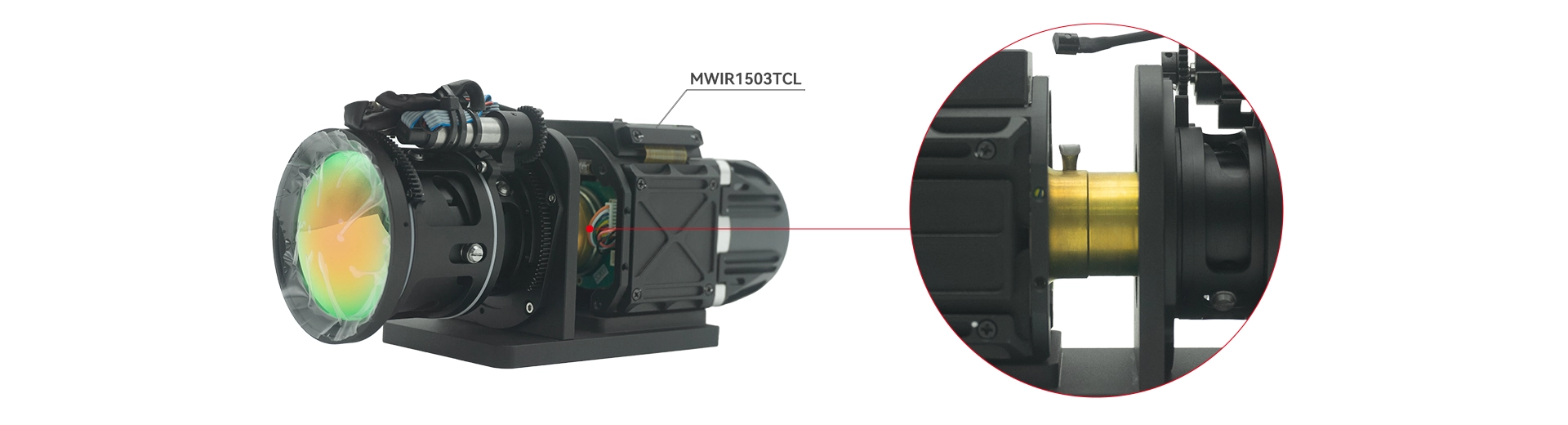
The MWIR1503TCL is a compact, high-sensitivity cooled mid-wave infrared camera core weighing just 420 g. It captures infrared radiation in the 3.7–4.8 μm band at a resolution of 640×512 with a 15 μm pixel size. Equipped with a Type‑II superlattice detector and a linear Stirling cryocooler, it delivers stable power consumption below 12 W, achieves full-temperature cool-down within 7 minutes, and maintains a bad pixel ratio of less than 0.3%.
| Features |
| 3.7µm – 4.8µm spectral response |
| 640 × 512 resolution with 15 μm × 15 μm pixel size |
| High frame frequency and high sensitivity |
| Linear stirling cryocooler |
| Digital output is provided via Camera Link |
| Supporting 14-bit raw data or 8-bit video data |
The MWIR1503TCL camera core is suitable for a wide range of thermal imaging systems, including night vision equipment, panoramic search and surveillance, micro-scanning devices, thermal sights, forward-looking warning systems, air defense monitoring, unmanned aerial vehicles (UAVs), as well as infrared diagnosis and temperature measurement applications. Its compact size and low weight enable seamless integration into both handheld and platform-mounted configurations, offering reliable performance across diverse operational scenarios.
| Detector Type | Type-II Superlattice Mid-Wave Infrared Detector |
| Resolution | 640×512 |
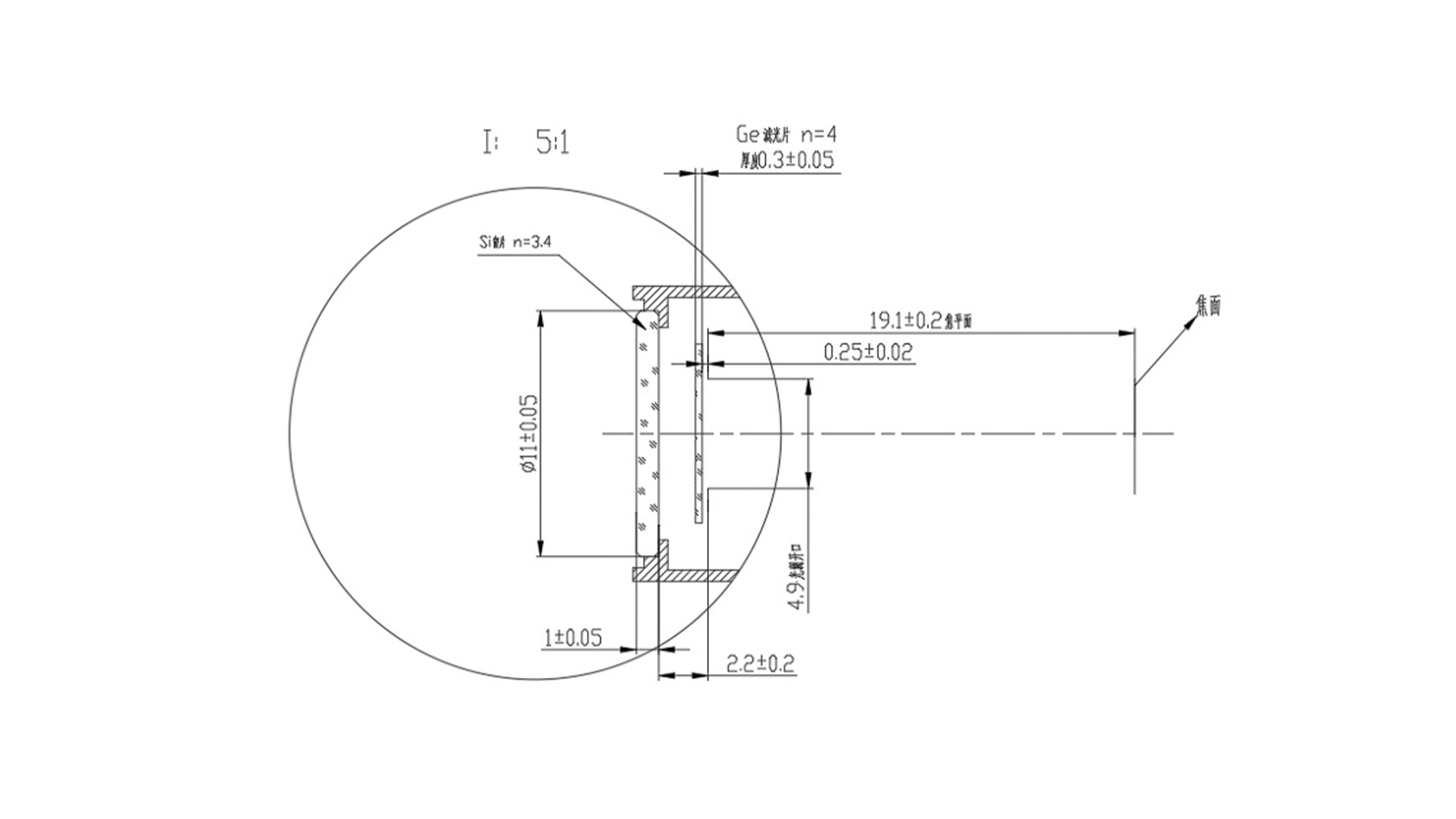
| F-Number | 4 |
| Pixel Size | 15 μm×15 μm |
| Response Band | 3.7 μm~4.8 μm |
| Bad Pixel Ratio | <0.3% |
| Full-Temperature Cooling Time | <7 mins |
| Cooling Method | Linear Stirling Cryocooler |
| Mean Time To Failure (MTTF) | 10000 h |
| NETD | ≤22 mk |
| Frame frequency | 25Hz/50Hz/100Hz/External Sync |
| Analog Output | PAL/NTSC System |
| Digital Output | Camera-link (14-bit raw data or 8-bit video data) |
| Image Adjustment | Contrast, Brightness, Image Polarity, Shutter Correction, Background Correction, Detail Enhancement, Electronic Zoom |
| Crosshair Reticle | Show/Hide |
| Integration Time | Continuously adjustable (6ms~20ms) |
| Input Voltage | DC12±1V |
| Cooling Power Consumption | < 28W (Peak current 3.5A in full temperature range) |
| Stable Power Consumption | < 12W |
| Operating Temperature | -40℃~+60℃ |
| Storage Temperature | -50℃~+70℃ |
| Vibration (Random Vibration) | 10Hz~80Hz, 0.01g²/Hz 80Hz~350Hz, 0.02g²/Hz 350Hz~500Hz, 0.02g²/Hz~0.01g²/Hz (Linear decrease) 3 axes (X, Y, Z), 40min/axis |
| Shock | Post sawtooth wave, 30g/11ms, shock test performed on 3 mutually perpendicular axes (X, Y, Z), 3 times forward and reverse per direction, total 18 times. |
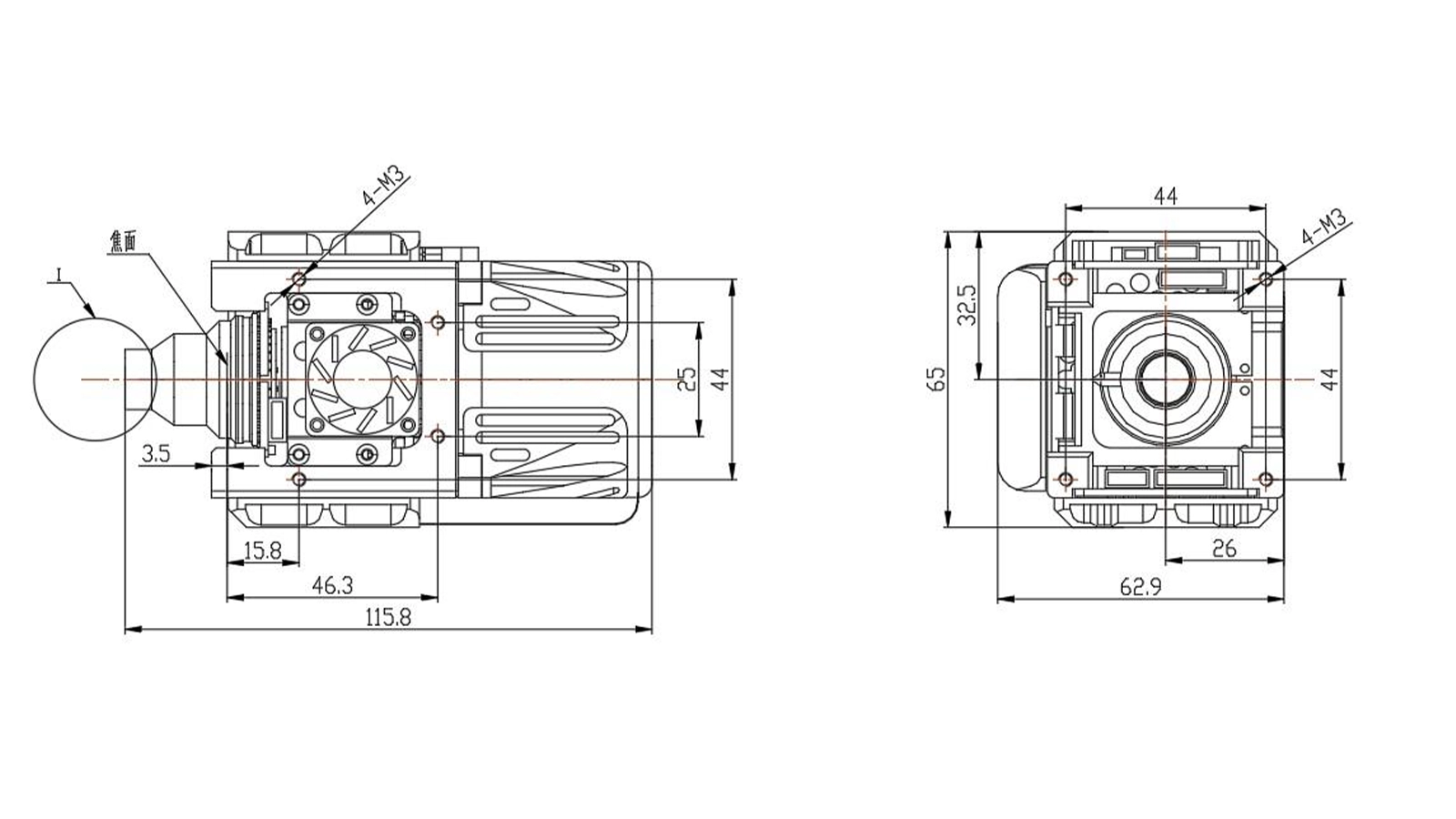
| Dimensions | 116mm×63mm×65mm |
| Weight | ≤420g |
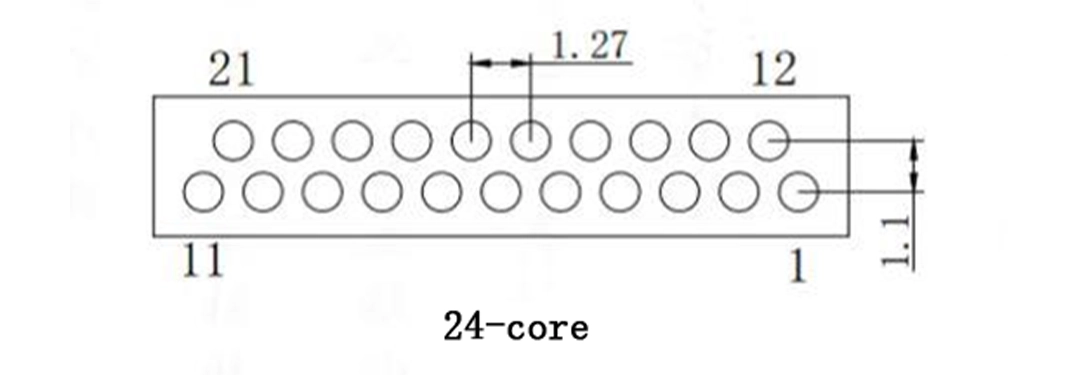
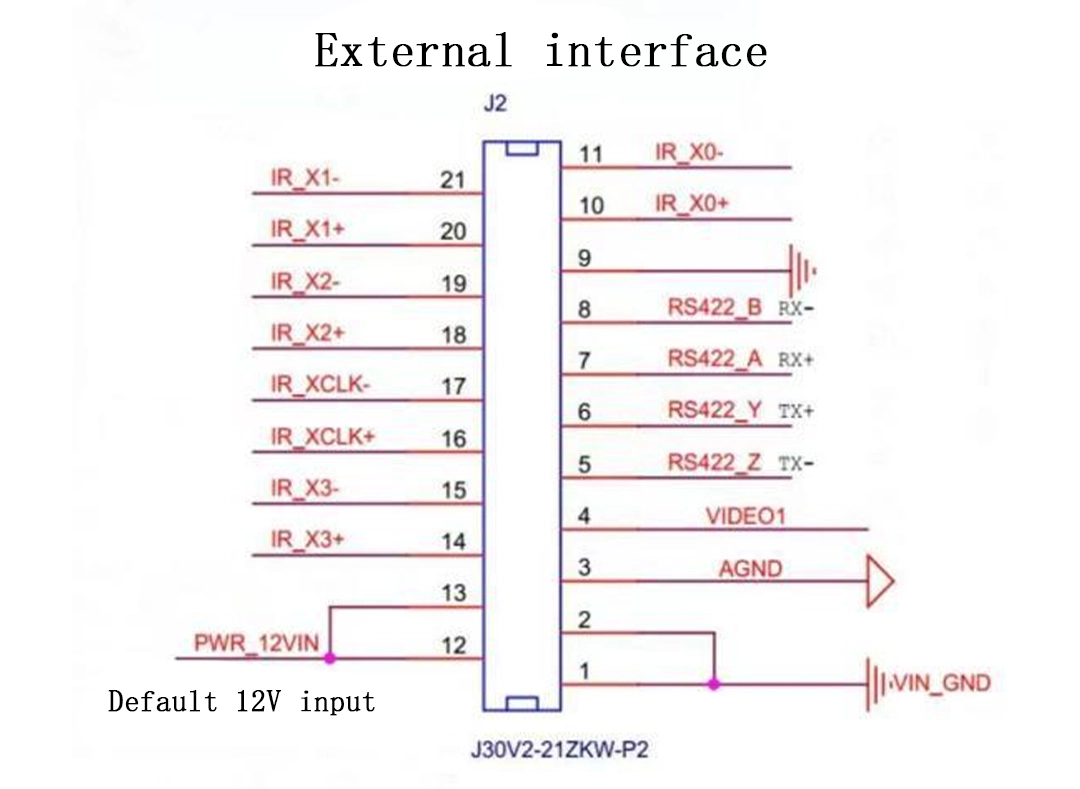
| Pin No. | Definition | Description |
| 12, 13 | VIN+ | Positive Power Input (+12V) |
| 1, 2 | VIN- | Negative Power Input |
| 3 | AGND | Analog Video |
| 4 | VIDEO1 | |
| 5 | RS422_Z TX- | RS422 Serial Port |
| 6 | RS422_Y TX+ | |
| 7 | RS422_A RX+ | |
| 8 | RS422_B RX- | |
| 9 | GND | camera-link |
| 10 | IR_X0+ | |
| 11 | IR_X0- | |
| 14 | IR_X3+ | |
| 15 | IR_X3- | |
| 16 | IR_XClk+ | |
| 17 | IR_XClk- | |
| 18 | IR_X2+ | |
| 19 | IR_X2- | |
| 20 | IR_X1+ | |
| 21 | IR_X1- |
Camera Link Timing

One frame of 640×512 data points
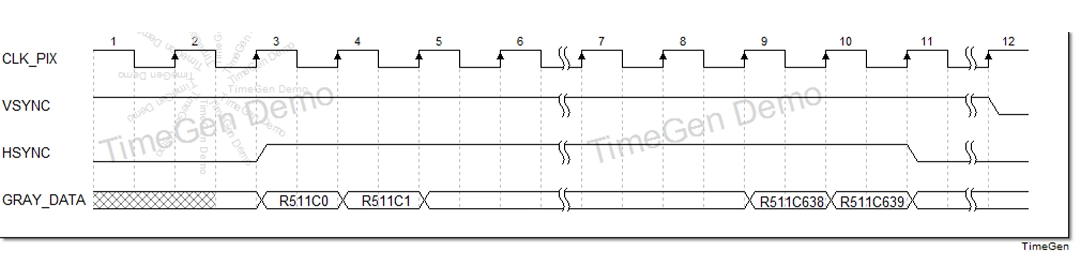
640 data points in the first line
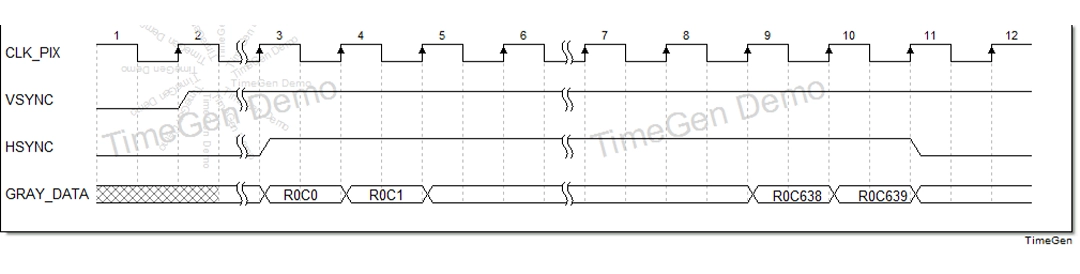
640 data points in the last line
GENE Parallel Digital Video Output Interface Timing
Users can operate via the host computer software by connecting through an RS422 serial port cable, with the following defined content.
Communication Format
Item | Value |
Baud Rate | 115200 bps |
Data Bits | 8 bit |
Stop Bits | 1 bit |
Parity | None |
Ensure the correct software is used and click to open.
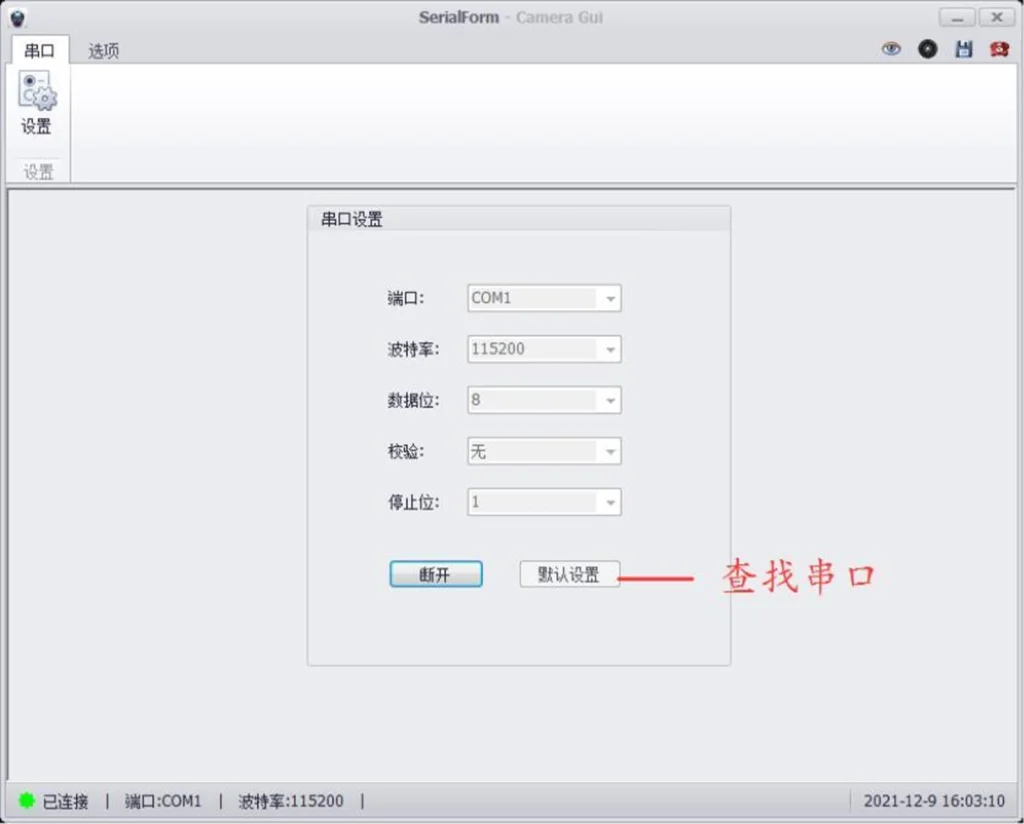
Select the Serial Port (UART) option and enter the Settings interface.
Select the correct COM port number, set the baud rate to 115200, and click Connect. A prompt box will pop up to indicate a successful connection.
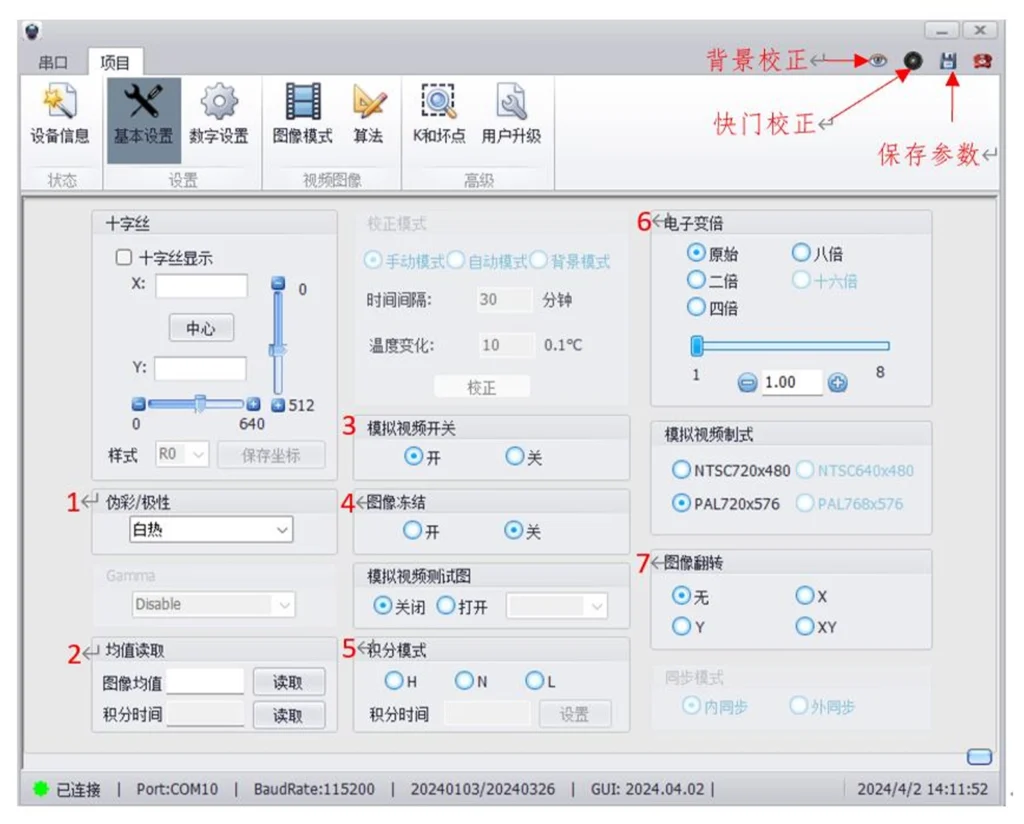
Select either Black Hot or White Hot image polarity mode.
Controls the analog image output.
Controls the image freeze function.
Select different integration times based on different temperature ranges (H: High; N: Normal; L: Low).
Select the corresponding magnification factor to achieve center magnification.
After vertical image flip, correction is required.
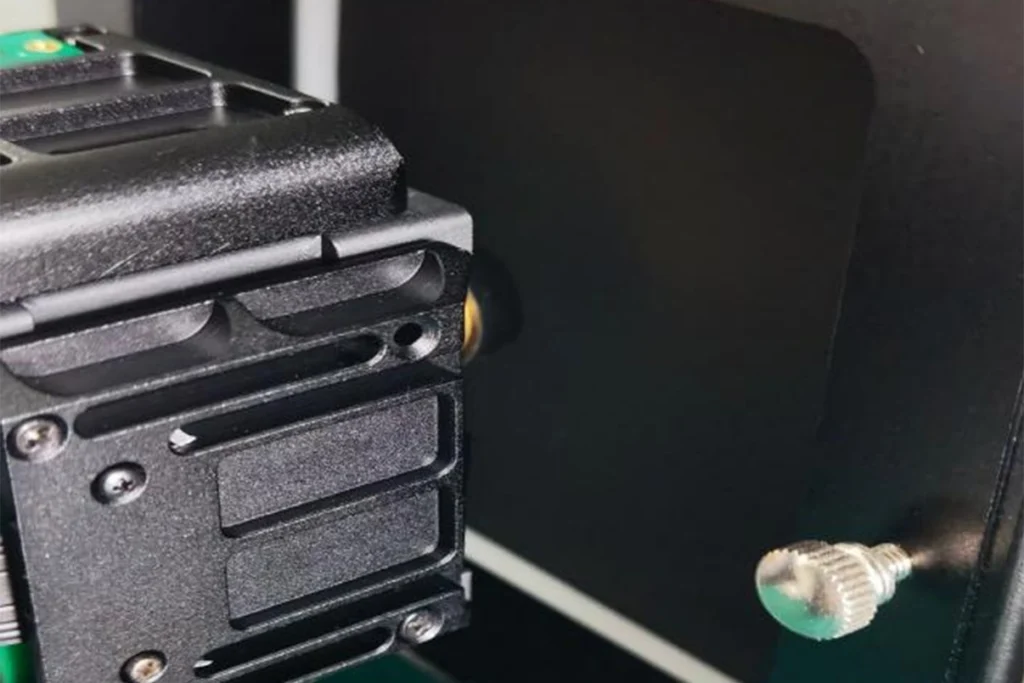
Note: When starting up to display an image or adjusting the integration time, a uniformly surfaced object (e.g., A4 paper) must be used to cover the lens portion for background correction.
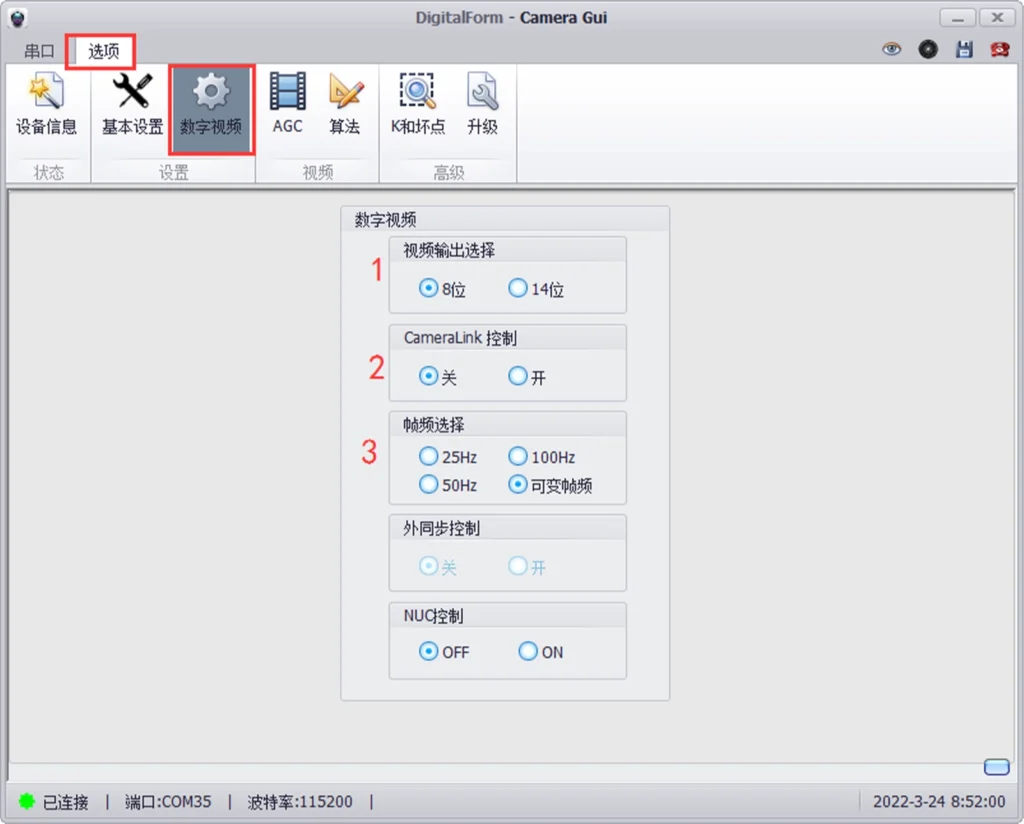
8-bit: Outputs 8-bit video data after AGC;
14-bit: Outputs data after non-uniformity correction.
OFF: Disables camera-link output;
ON: Enables camera-link output.
Select output frame rate: 25Hz, 50Hz, 100Hz.
When using a gas detector, the default mode is Variable Frame Rate, where the frame rate varies with the integration time
1. If background correction is not performed, the background may be incorporated into the image during startup or integration time changes; background correction is required.
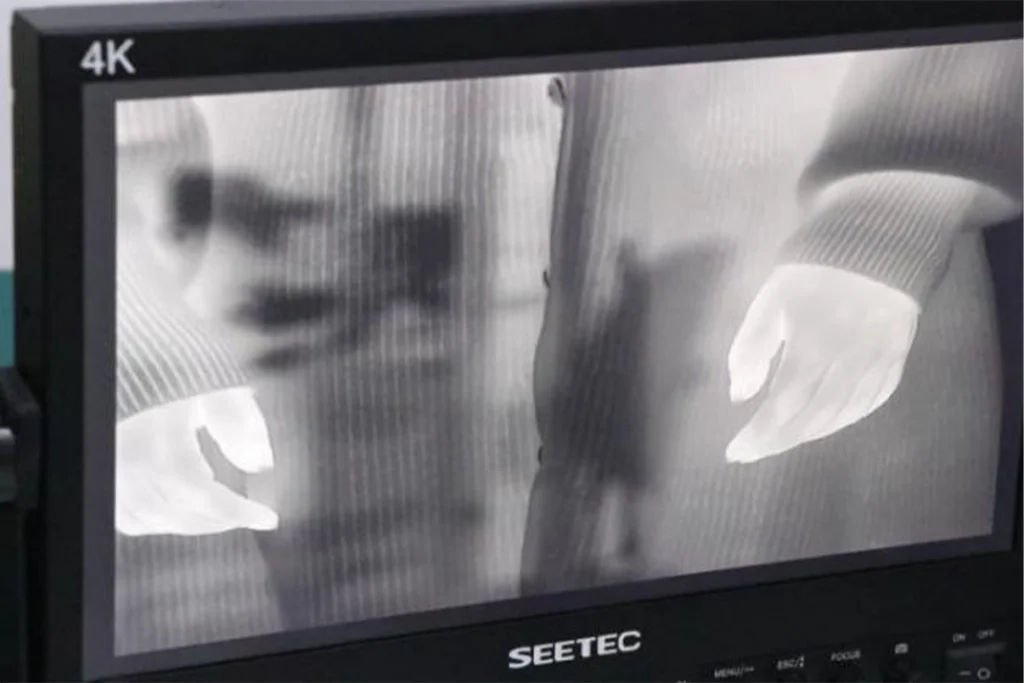
2. Select a uniformly surfaced object to cover the lens or the camera core window portion. Simultaneously, select Background Correction in the software. Click it, wait a few seconds, then remove the object; correction is complete.
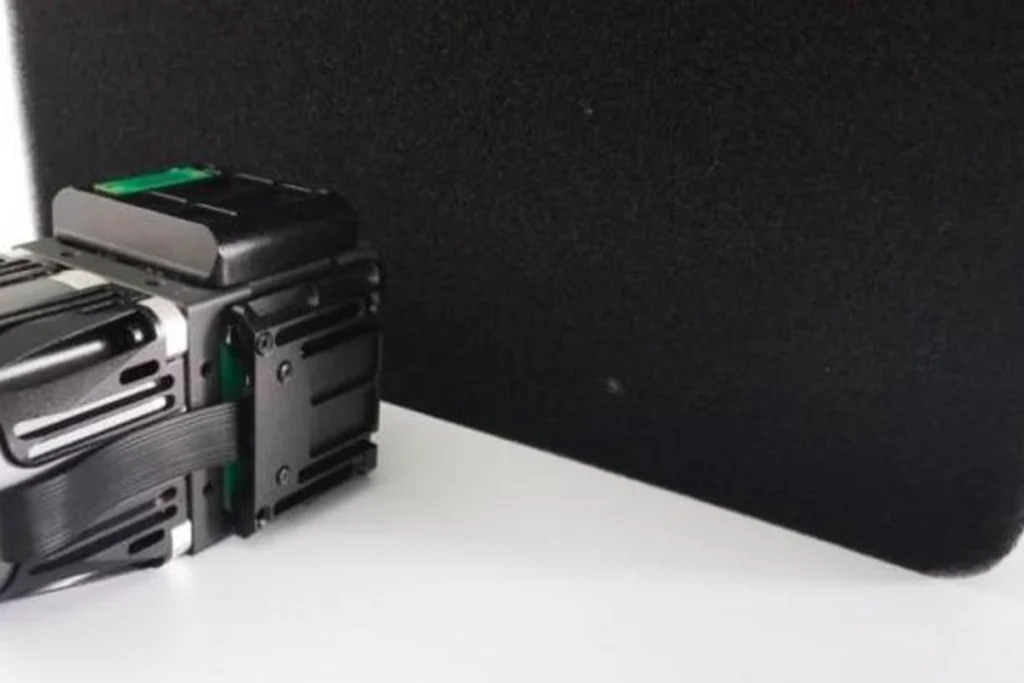
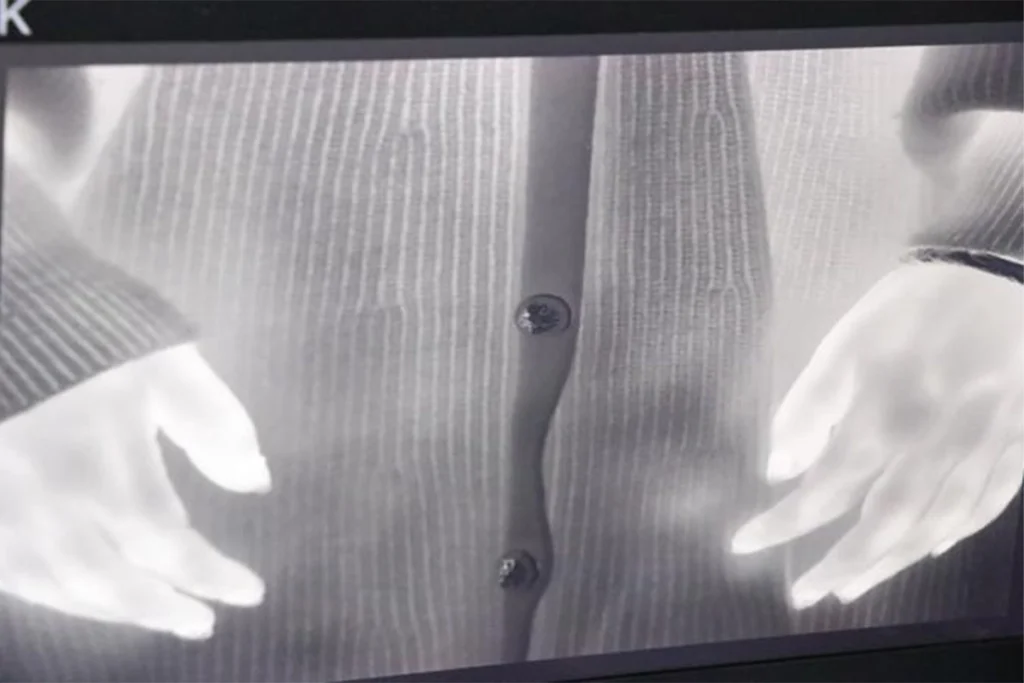
3. Corrected Image
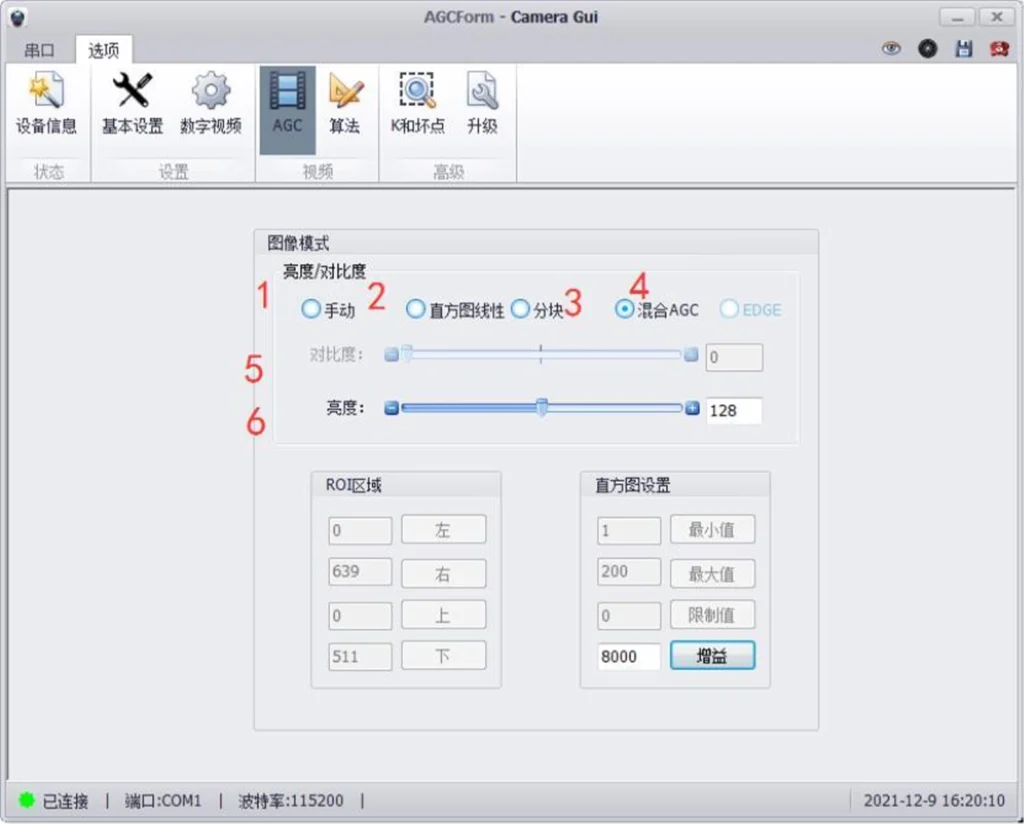
Select AGC mode:
1 Manual;
2 Histogram Linear;
3 Local Histogram Equalization;
4 Hybrid AGC. Different modes have different adjustable parameters.
5 is Contrast Adjustment, adjustable by dragging or manual input.
6 is Brightness Adjustment, adjustable by dragging or manual input.
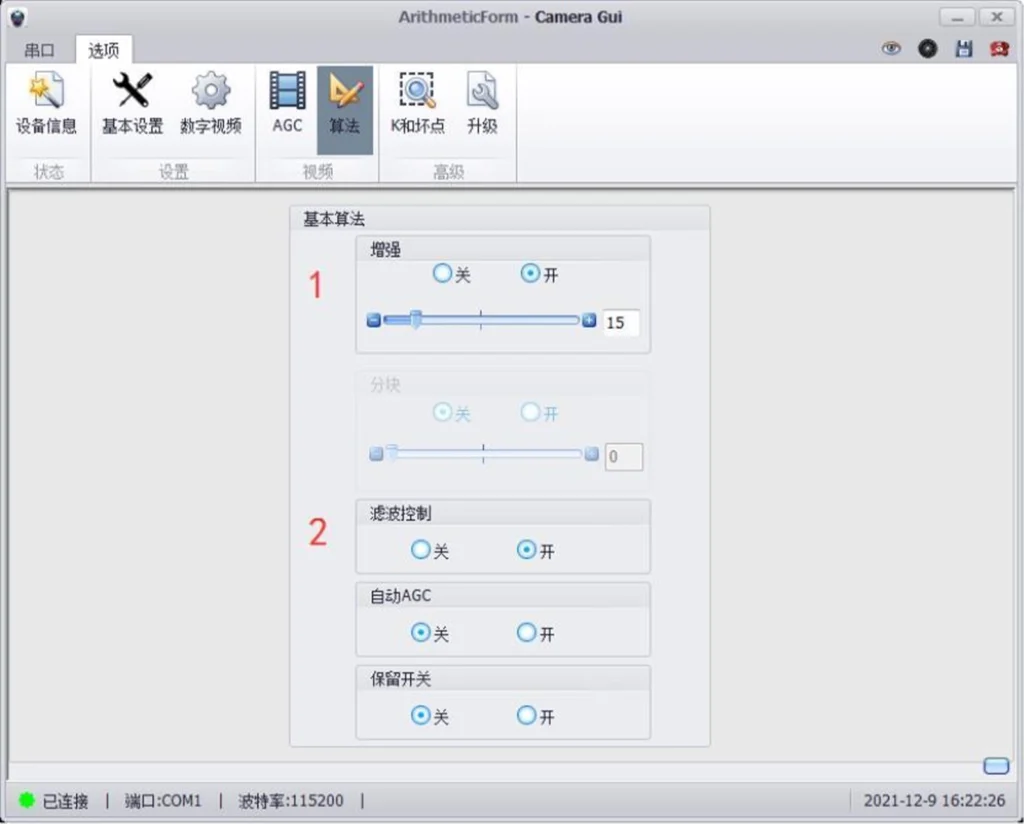
Turn image enhancement on or off, adjustable enhancement parameters.
Turn filtering and other algorithms on or off
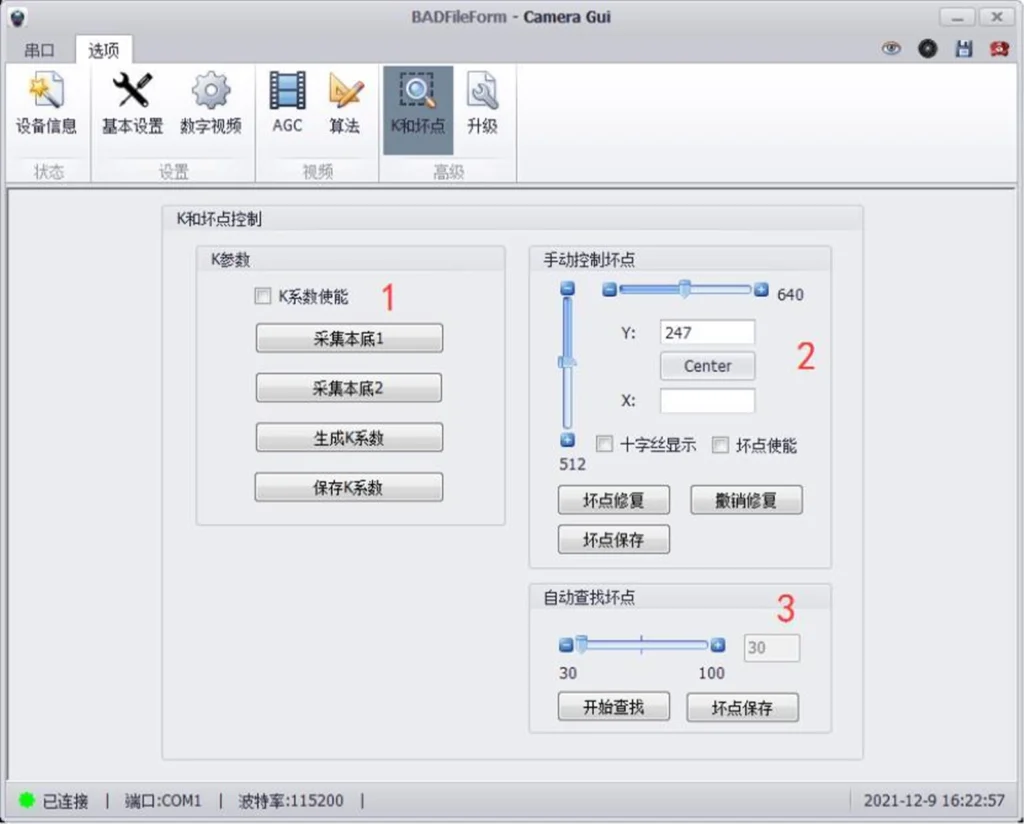
The K Coefficient Enable button controls the K function switch. The Normal Temperature K Coefficient requires two temperature ranges from blackbodies for image calibration. It is recommended that the high-temperature range be between +40℃ and +55℃, and the low-temperature range be between 0℃ and +20℃.
Calibration Procedure:
a) Power on and wait for the image to appear normally. In Basic Settings -> Image Mirror, select Normal mode. Enter the K Coefficient page to collect parameters.
b) Place the camera core in front of a blackbody set within the +40℃ to +55℃ range. Click Collect B1 to perform the first parameter collection.
c) Place the camera core in front of a blackbody set within the 0℃ to +20℃ range. Click Collect B2 to perform the second parameter collection (positioning the core similarly as above).
d) Click Generate K Coefficient.
e) Click Background Correction to perform background correction and check the K coefficient effect.
f) If satisfied with the K coefficient effect, click Save K Coefficient to save the parameters.
g) If not satisfied, repeat the above steps.
2. Dead Pixel Replacement
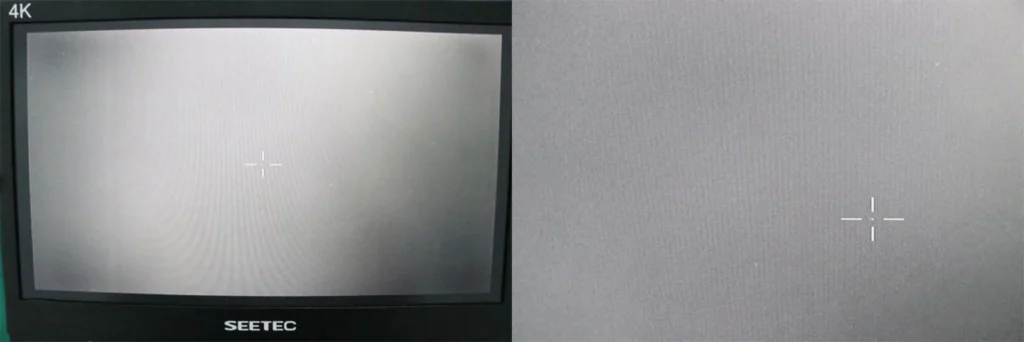
a) Click the Crosshair button to enable the dead pixel crosshair.
b) Use the slider and enter numbers to control the horizontal and vertical coordinates:
X controls the horizontal coordinate, Y controls the vertical coordinate.
c) Click Center to return the crosshair to the screen center.
d) Click the Dead Pixel Enable button to turn dead pixel replacement on/off.
e) Use the dead pixel crosshair to mark the dead pixel at its center. Click the Dead Pixel Repair button to fix it, or click the Undo Repair button to undo the dead pixel repair
3. Auto Find Dead Pixels
a) Users can activate the Auto Find Dead Pixels function if they find that dead pixels still exist or have increased on the core.
b) Observe a surface with uniform appearance and significant temperature difference. After locating a visible dead pixel, click + or – to fine-tune the position and repair it.
c) Set a matching threshold between 30 and 100, click Start Find to automatically locate dead pixels; the changes take effect immediately.
d) Check if dead pixel replacement was successful. If satisfied, click Save Dead Pixels. Otherwise, repeat the above steps.
MWIR technology is an infrared imaging technology that operates in the 3–5 μm waveband. It is widely used in advanced defense imaging systems, providing critical capabilities such as surveillance, target detection, and data collection.
Under certain conditions, MWIR cameras can detect objects up to approximately 2.5 times farther than LWIR cameras. Additionally, MWIR is less sensitive to atmospheric effects, making it particularly effective in environments with good visibility and favorable weather conditions.
MWIR is highly sensitive to temperature differences and excels at detecting high-temperature targets such as engines or missile plumes. Its strong thermal contrast enhances imaging performance, making it well‑suited for precise detection in highly dynamic scenarios.
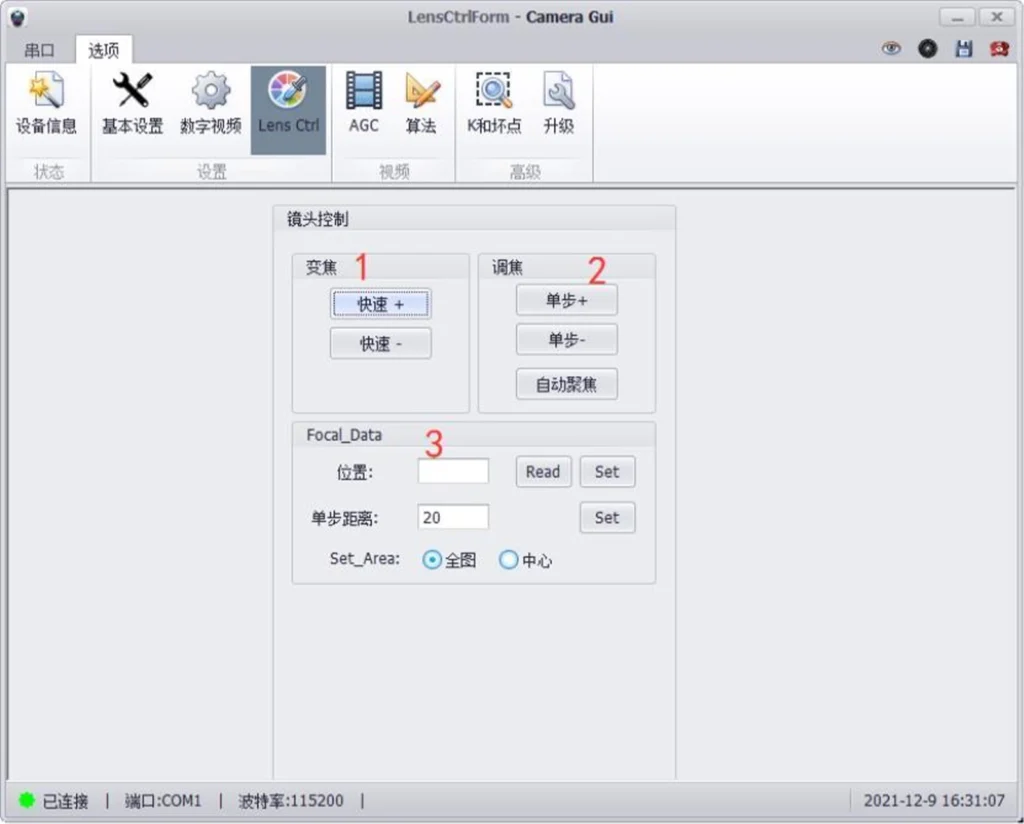
Our Mid-Wave Infrared (MWIR) lens offers a wide range of optical solutions to enhance your thermal imaging system. They are designed to meet a wide range of detection, recognition, and identification requirements . Available as optional accessories, the lineup includes continuous zoom lenses covering ranges from 15‑300mm up to 60‑1200mm with aperture options of f/4.0 or f/5.5 depending on the model.